Other Features for Test case Design
Multiselection for Tests
Section titled “Multiselection for Tests”The Multiselection feature on the Tests page allows users to perform bulk actions on multiple tests, entire test suites, or folders.
To enable Multiselection:
Section titled “To enable Multiselection:”-
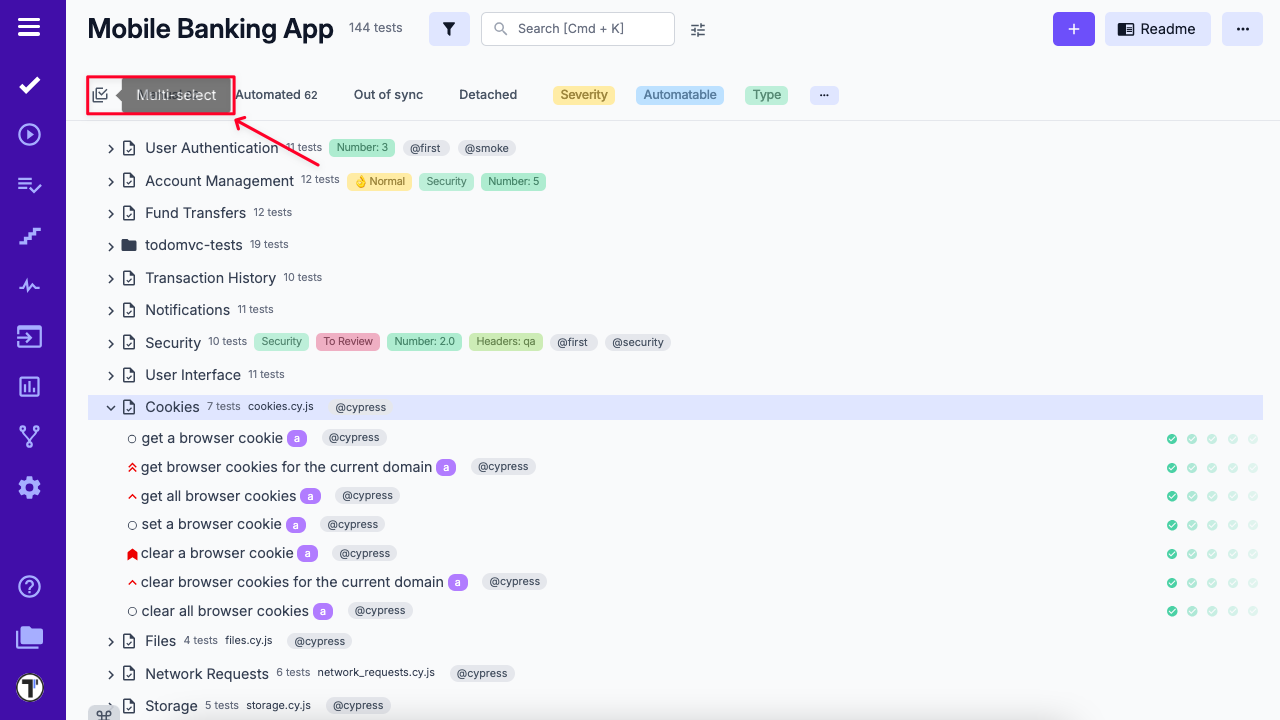
Click the Multiselection button located at the top left corner of the Tests page.
-
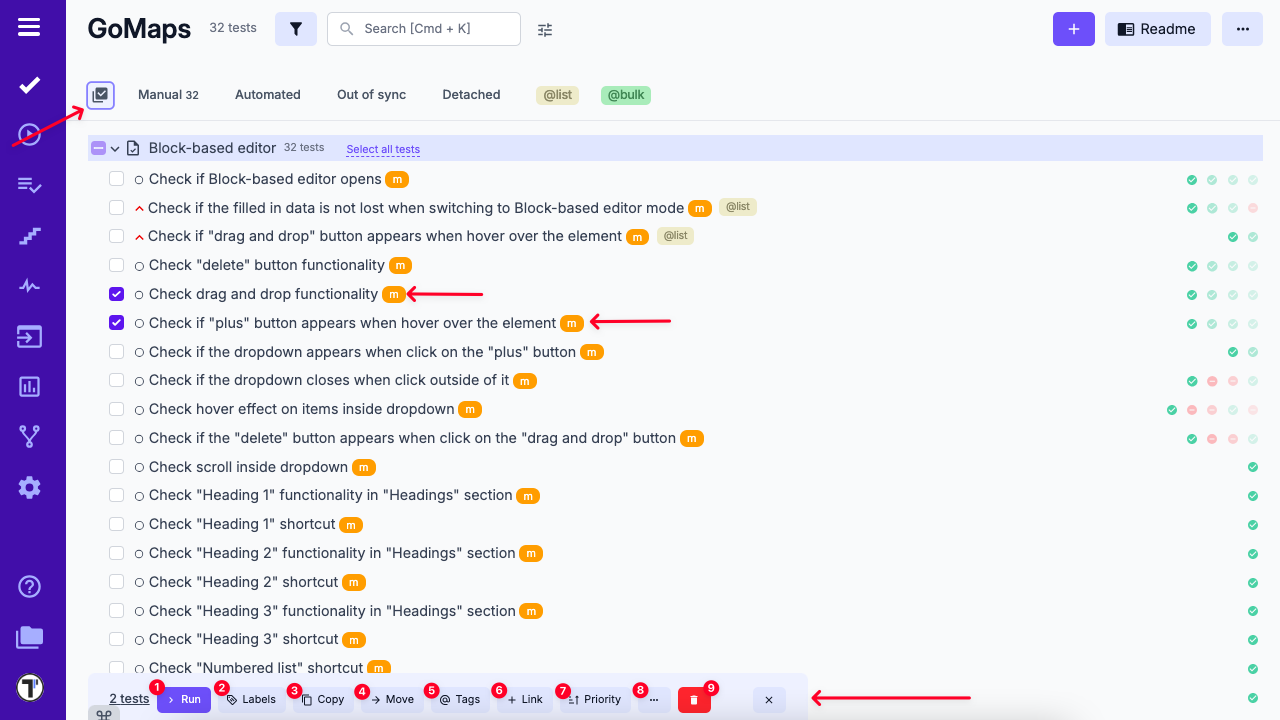
Select the desired tests, test suites, or folders.
-
Once selected, the Multiselection options toolbar will appear at the bottom of the page.
Available Multiselection Actions:
Section titled “Available Multiselection Actions:”-
Run – Launches a test run containing the selected items.
-
Labels – Add or remove labels or custom fields for the selected tests.
Learn more about labels → -
Copy – Copy selected tests within the current project or to another project.
-
Move – Move tests to another test suite or folder within the same project.
-
Tags – Assign existing tags or create new ones for the selected tests.
More on using tags → -
+ Link – Open a pop-up to link a related defect to the selected tests.
-
Priority – Set priority levels for the selected tests.
-
More options (⋯) – Contains additional action Download – Export selected tests to a spreadsheet.
-
Delete – Permanently remove the selected tests.
URL/ID Quick Copy
Section titled “URL/ID Quick Copy”Depending on your needs, you can set up a convenient way to copy URL/IDs in Test Cases, Suites and Runs.
To start, you need to open a Test Case (Suite or Run):
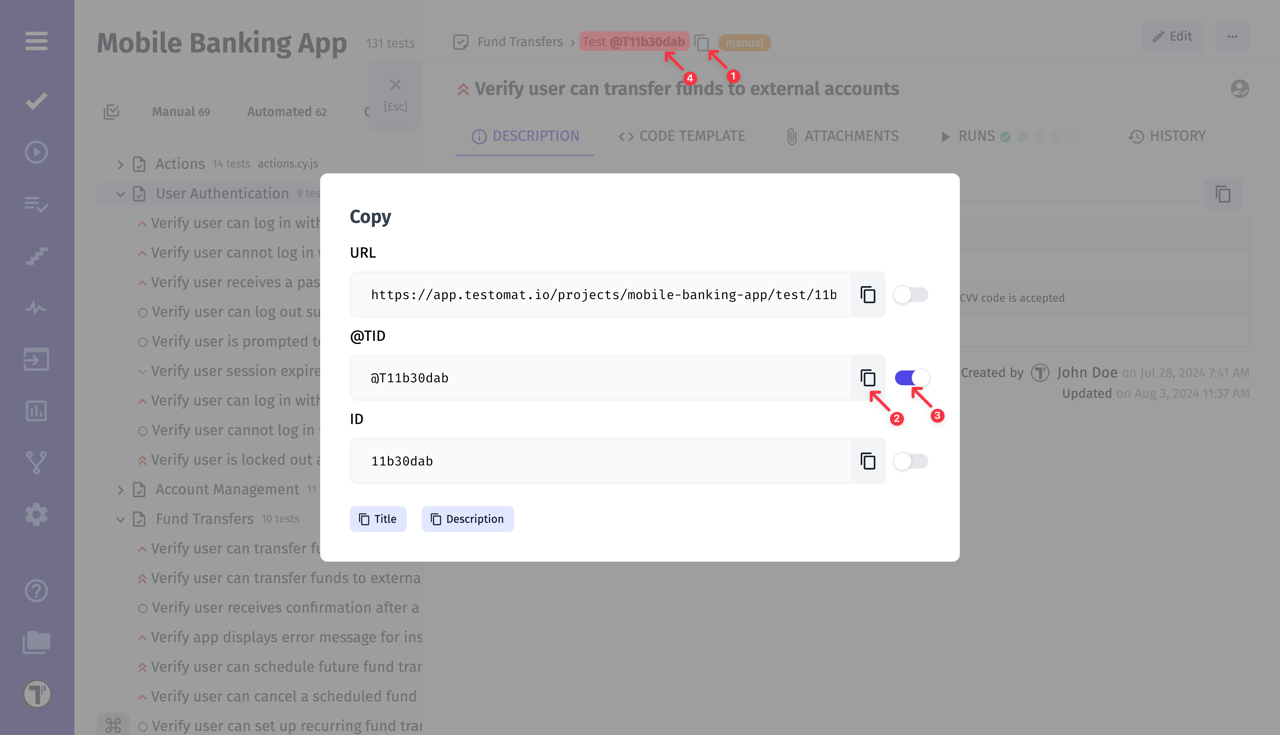
- Click the copy icon to open the modal window.
- In the window that opens, you can copy the format you are interested in.
- Turn on the toggle next to a format if you need to use it frequently.
- Now, every time you click on the ID, the selected format will be copied to clipboard without any further actions.
Suites and folders
Section titled “Suites and folders”Unlike other test management systems, Testomat.io doesn’t allow suite to include other suites and tests. That’s why you can either create a suite (a collection of tests) or folder (collection of suites).
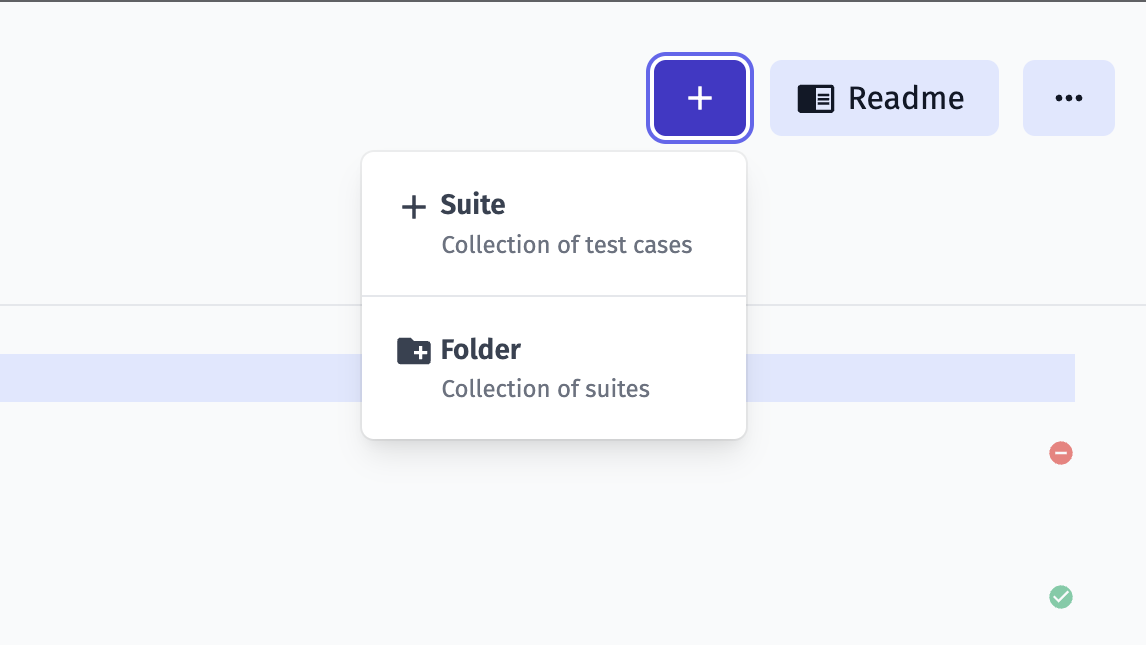
This was designed so tests structure could match the filesystem. For instance, if you use BDD project, feature file can contain scenarios, but can’t contain other feature files. The same for automated tests, a file can contain tests but can’t contain other files.
It’s assumed that in any moment a manual test can be automated, so it is important to keep the filesystem structure in a project.
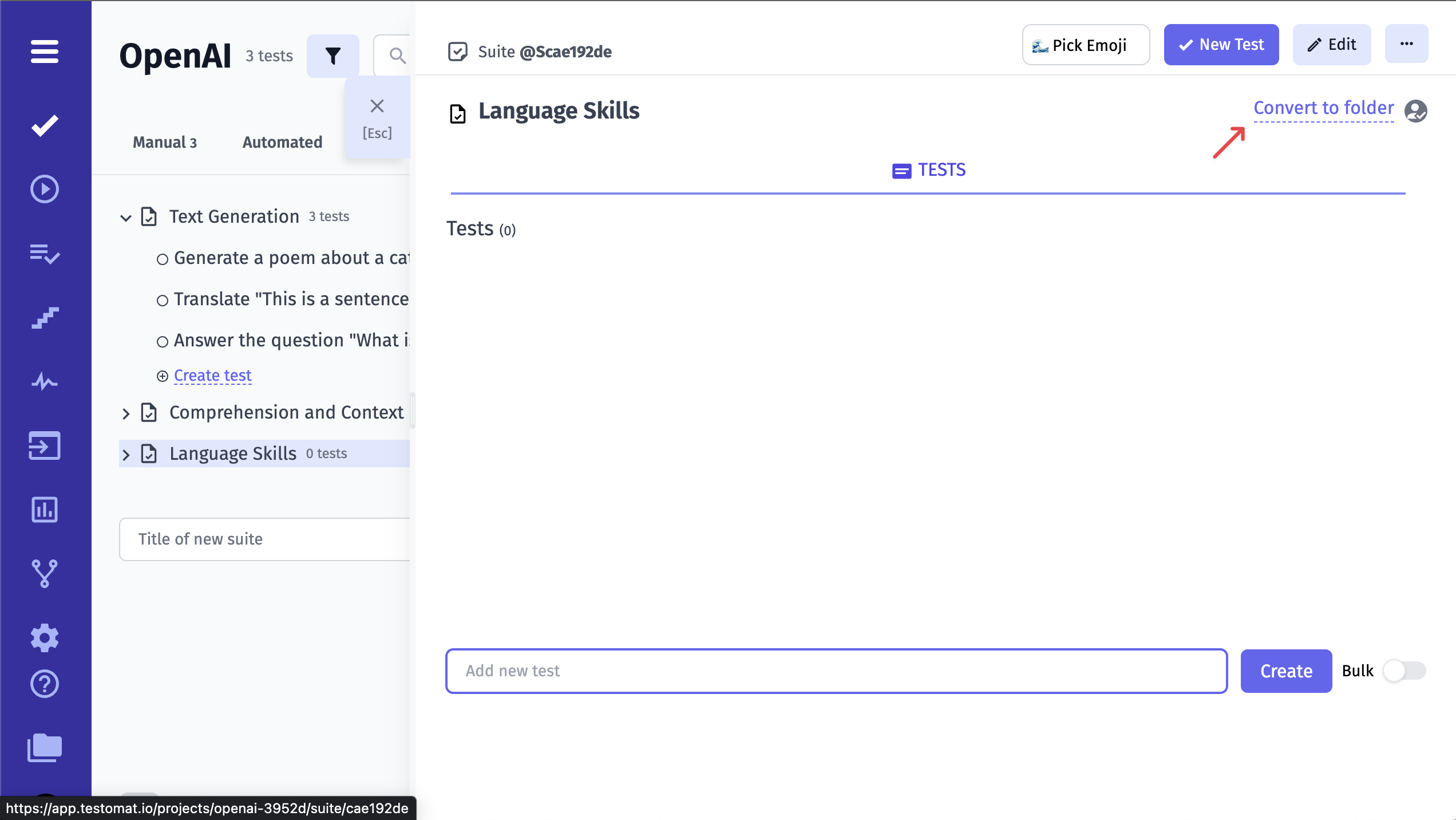
An empty suite can be converted to folder or vice versa
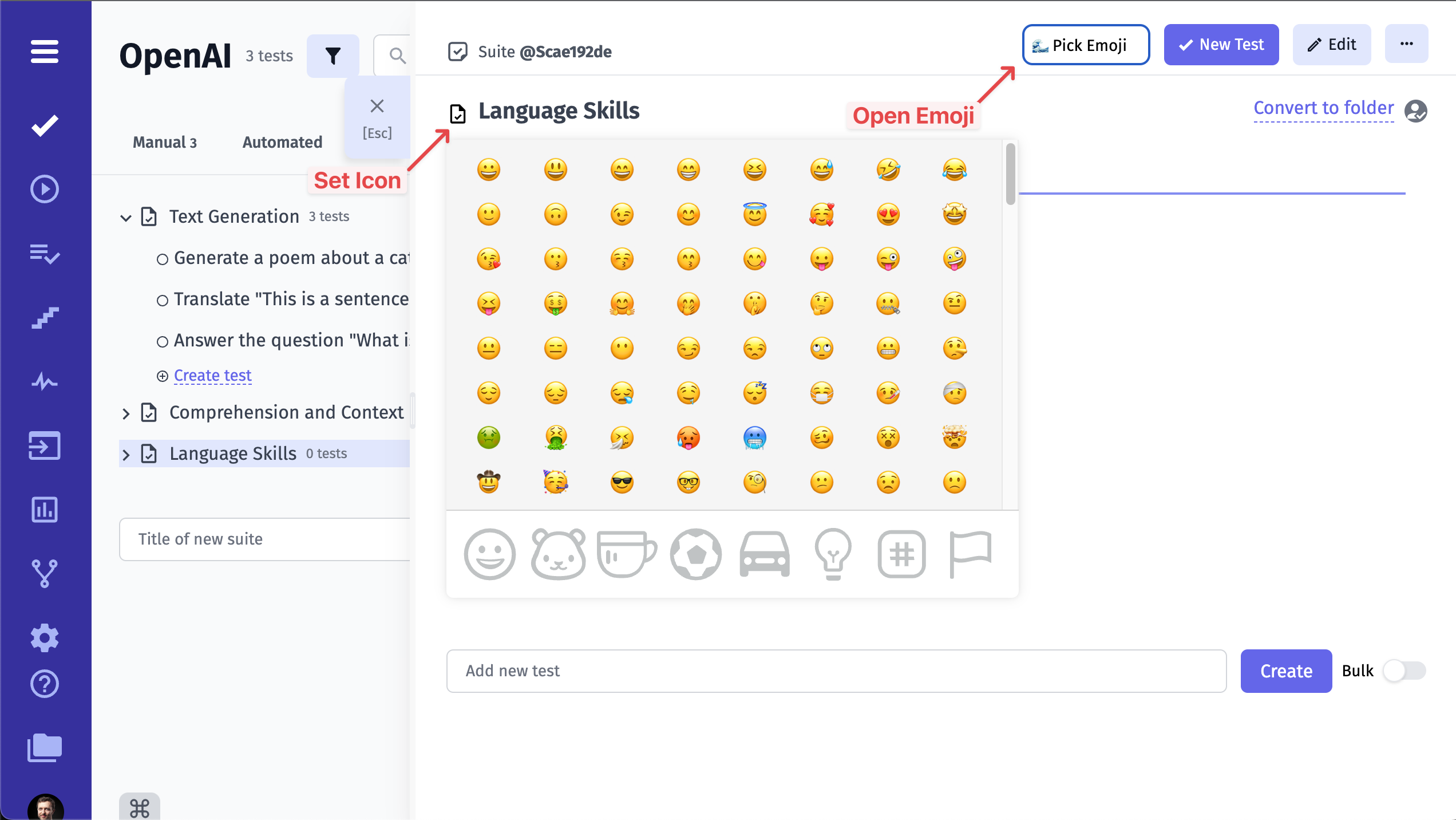
Also you can set an emoji icon for the suite
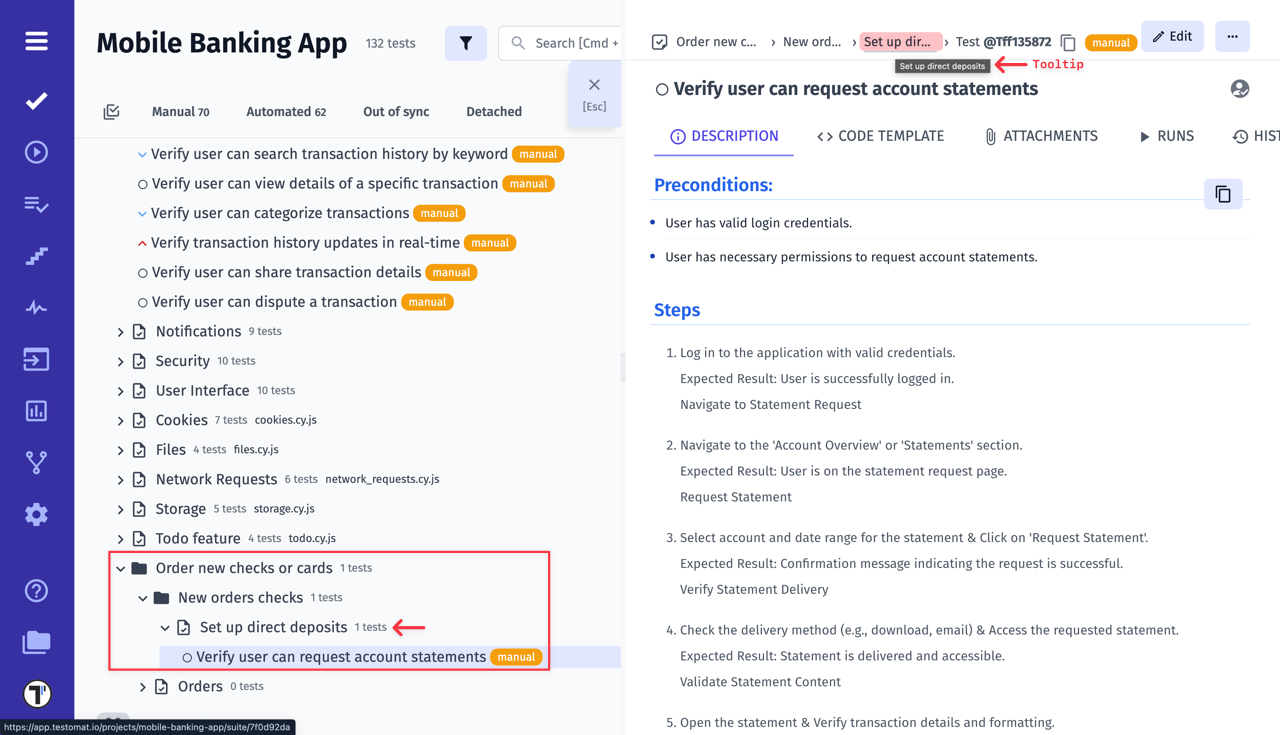
If your test is deeply nested within suites and folders, you can use breadcrumbs with tooltips to navigate the project structure more effectively.
Mark Folders & Suites as Favourites
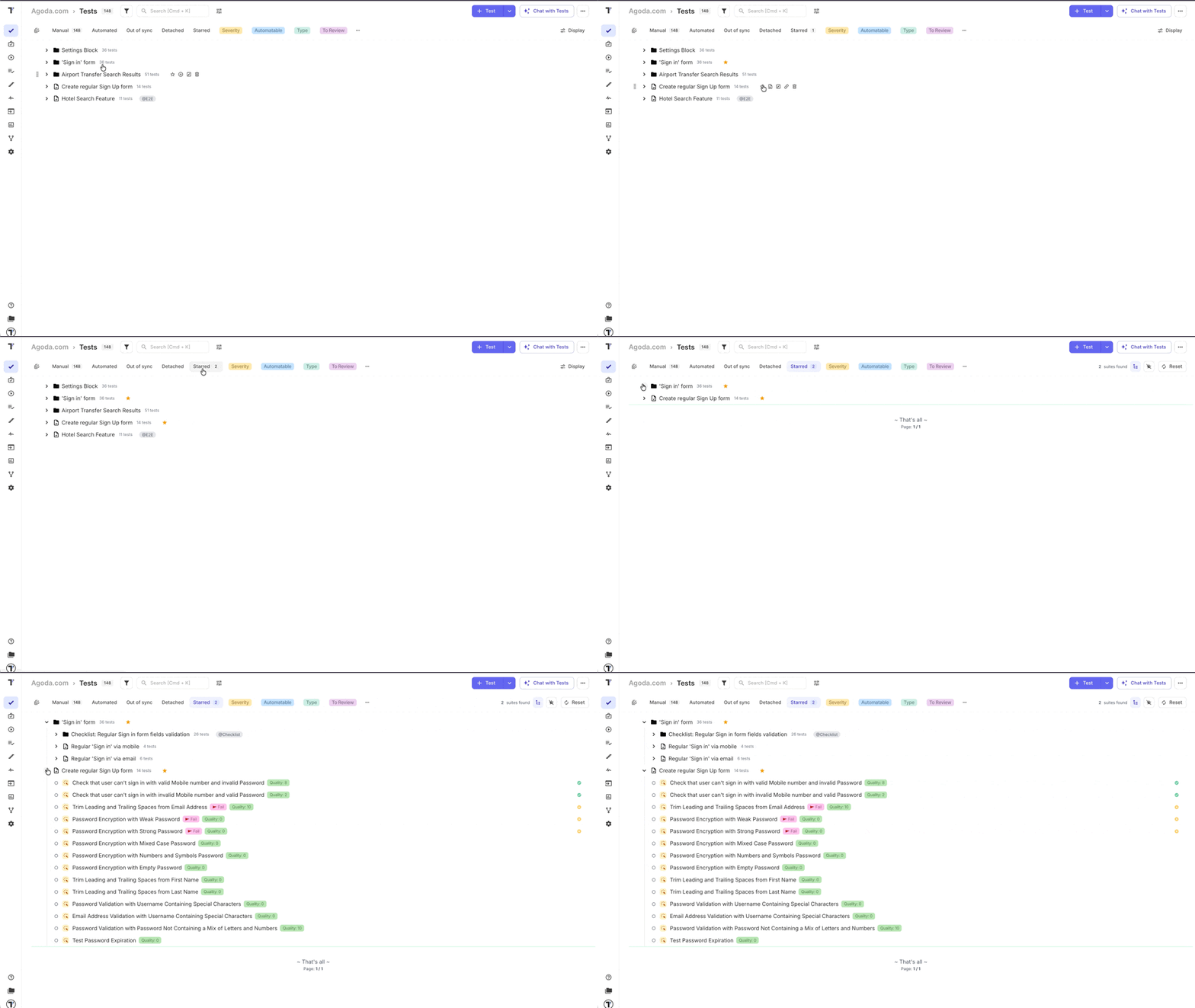
Section titled “Mark Folders & Suites as Favourites”Working with large projects often means navigating through a long test tree or running the same search queries over and over again. To make your workflow smoother, we’ve introduced the ‘Starred’ feature for test suites and folders.
Now you can:
- ⭐ Star any suite/folder you plan to work on — whether it’s for the current sprint, a specific release, or ongoing maintenance.
- 📂 Create your own quick-access list of suites to eliminate repetitive navigation through the entire test tree.
- 🔍 Mark favourites directly from search results — if you’re looking for a test or suite/folders by keyword or using filters you can instantly star it without leaving the search view.
- ⏱ Quickly return to starred suites/folders even after filters or selections are reset — simply use the ‘Starred’ filter to jump back.
- 🛠 Work more efficiently by keeping frequently accessed suites/folders at your fingertips, especially in large or multi-team projects.
Whether you’re focusing on smoke tests, regression packs, or a specific customer scenario, the ‘Starred’ feature ensures you spend less time navigating and more time testing.